PixDok Logo

Free Online QR Code Generator

Create custom QR codes instantly with PixDok. Choose what you want to share, customize your QR code, preview it live, and download a high-quality QR code for free.

No Sign Up No Registration Free to Use No Watermark

Create a QR code in seconds by choosing a content type, entering your information, customizing the design, and downloading the finished code. PixDok supports multiple QR code formats for websites, text, WiFi networks, payments, contact information, phone numbers, email, WhatsApp, social profiles, and locations.

Free Online QR Code Generator

Create custom QR codes instantly with PixDok. Choose what you want to share, customize your QR code, preview it live, and download a high-quality QR code for free.

No Sign Up No Registration Free to Use No Watermark

Choose Content Type

Website URL
Plain Text
WiFi Access
UPI Payment
vCard Contact
Phone
Email
WhatsApp
Social Profile
Google Maps
Your QR Code isn't ready yet. Add content and click Next to generate it.

Live Preview

Live QR Code

Fill out content fields to build and preview your QR Code.

⚡ PixDok QR Tracking

Scan count, analytics, and demographic data for your generated smart dynamic links.

Total Scans
1,482
Unique Devices
918
Bounce Rate
12.4%
Conversion Rate
84.2%
Top Scans by Device Type
Mobile (iOS)
58%
Mobile (Android)
32%
Tablet
8%
Others
2%
Scans by Top Browsers
Safari
48%
Chrome Mobile
38%
Opera Mini
10%
Firefox Mobile
4%
Preview
Live QR Code

Large QR Preview

Premium QR Analytics

Track real-time scan counts, unique user locations, scan dates, device configurations, and browser distributions for all your dynamic contacts and links.

Login to Account

Free QR Code Generator With No Sign Up

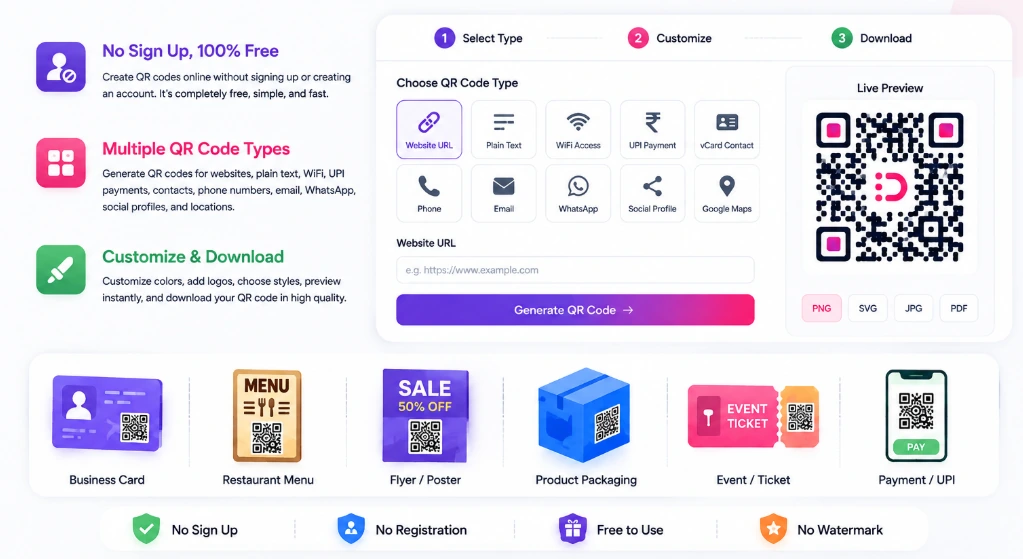
Need a QR code quickly? PixDok lets you create QR codes online without signing up or creating an account. Choose the type of information you want to share, enter your details, customize the QR code, preview it instantly, and download the result in your chosen format.

Free QR Code Generator With No Sign Up interface showing customizable options, center logo overlay, live preview, business use cases, and instant downloads

You can create QR codes for websites, plain text, WiFi networks, UPI payments, phone numbers, email addresses, WhatsApp, contact cards, social profiles, and locations. Whether you need a QR code for a business card, restaurant menu, flyer, poster, product packaging, event, payment, WiFi access, or personal use, PixDok provides a simple browser-based QR code generator.

QR Code Generator Features

Explore the primary tools and options available in the PixDok QR Generator:

Multiple QR Code Types

Create QR codes for different types of information including URLs, text, WiFi, UPI payments, contacts, phone numbers, email, WhatsApp, social profiles and locations.

Custom QR Code Design

Customize the appearance of your QR code using foreground colors, background colors, linear/radial gradients, and custom corner eye and dot styles.

Add Your Logo

Place your company or personal logo in the center of the QR code using PNG, JPG, or SVG image formats with custom scale controls.

Live QR Code Preview

The generator updates the live QR code preview instantly as you type or change customization options.

High-Quality Download

Export your generated QR code as PNG, JPG, vector SVG, or print a formatted A4 PDF sheet.

Print & Digital Use

Suitable for business cards, flyers, posters, restaurant menus, product packaging, event signage, websites, and social media.

How to Create a QR Code Online for Free

1. Select a QR Code Type

Choose what you want the QR code to contain: Website URL, Plain Text, WiFi, UPI, vCard Contact, Phone, Email, WhatsApp, Social Profile, or Google Maps location.

2. Enter Your Information

Input the URL, text, contact info, WiFi credentials, or payment details into the interactive form fields.

3. Customize Your QR Code

Adjust colors, gradients, corner eye frames, data module dot shapes, quiet zone margins, and center logo scaling.

4. Download and Test

Download the finished code as PNG, SVG, JPG, or PDF. Test the QR code with your smartphone camera before publishing or printing.

What Can You Create a QR Code For?

PixDok supports a wide range of content formats tailored for everyday digital and print workflows:

Website URL QR Code

Opens a website, landing page, online menu, registration form, or booking page when scanned.

Plain Text QR Code

Encodes instructions, messages, notes, or raw alphanumeric text directly inside the QR code symbol.

WiFi QR Code

Allows compatible smartphones and tablets to join a WiFi network without typing the network password manually.

UPI Payment QR Code

Encodes payee UPI ID, name, optional amount, and transaction note so users can scan and pay with compatible UPI apps.

vCard Contact QR Code

Encodes full name, phone number, email, company, and profile photo into a standard vCard contact file format.

Phone QR Code

Encodes a phone number so scanning triggers the phone dialer instantly.

Email QR Code

Pre-fills recipient email address, subject line, and body message in the user's default email client.

WhatsApp QR Code

Opens a direct WhatsApp chat window with a specified phone number and optional pre-filled greeting message.

Social Profile QR Code

Directs users to your Instagram, YouTube, Facebook, Twitter (X), LinkedIn, or Telegram profile pages.

Google Maps QR Code

Directs users to specific GPS coordinates (latitude and longitude) on Google Maps.

Create a Custom QR Code With Your Logo

A QR code does not have to look like a generic black-and-white grid. PixDok provides design options so you can build QR codes that align with your brand identity.

Design Customization Options

  • Custom foreground and background color pickers
  • Solid or transparent background toggles
  • Linear and radial color gradients
  • Custom data dot shapes (Square, Rounded, Extra Rnd, Dots, Classy)
  • Corner eye frame and eye ball styling
  • Quiet zone margin scaling (0px to 40px)

How to Add a Logo to a QR Code

  1. Select your content type and enter information.
  2. Navigate to Step 2 (Customize QR Code).
  3. Open the Center Logo Overlay section.
  4. Upload a PNG, JPG, or SVG logo file up to 2MB.
  5. Use the Logo Size Scaling slider (10% to 50%) to adjust size.
  6. Test scan the code with a smartphone camera to ensure scannability.

Scan Tip: Placing a logo over the center obscures some QR data modules. We recommend selecting H (High ~30% recovery) error correction level whenever a center logo is used.

What Is a Static QR Code?

A static QR code encodes information directly into the QR code symbol itself. If the QR code contains a website URL, changing the destination later generally requires creating a new QR code unless a separate redirect service is used. A static QR code does not have an built-in expiration date in the code format, but whether the content remains accessible depends on whether the destination web page or service remains active.

Static vs Dynamic QR Codes Comparison

Feature Static QR Code Dynamic QR Code
Data Encoding Encoded directly inside the QR symbol Uses a short redirect link destination
Destination Editing Requires generating a new QR code Destination URL can be updated online
Scan Analytics Not tracked directly inside code Supports scan count and device analytics
Best For Fixed URLs, WiFi credentials, plain text Marketing campaigns, changing promotions

* Note: PixDok generates static QR codes locally, and offers dynamic contact cards for complex vCards and URL short links.

Is My QR Code Data Private?

PixDok renders the QR code image directly in your browser using client-side canvas rendering. Short links or dynamic contact cards may securely connect to PixDok services to provide short URL redirection or contact page formatting.

When generating static QR codes for plain text or local URLs, calculations happen right inside your device's browser memory. Always verify sensitive information such as UPI handles or WiFi passwords before distributing printed materials.

How to Test and Print Your QR Code

How to Test Before Sharing

  1. Open your phone's built-in camera or QR scanner.
  2. Point the lens at the live preview box.
  3. Confirm that the detected URL or content is accurate.
  4. Test scanning from a typical viewing distance.
  5. If printing, print a physical test sheet first.
  6. If it fails to scan, increase color contrast or reduce logo scale.

Printing Recommendations

  • Format: Use SVG vector format for crisp print scaling.
  • Contrast: Keep dark foreground modules on a light background.
  • Quiet Zone: Maintain at least 10px margin around the border.
  • Sizing: Ensure the printed QR is at least 2 × 2 cm for close-up scanning on business cards.
  • Media: Avoid high-gloss reflective surfaces that cause glare under lights.

Popular QR Code Use Cases & Instructions

Restaurant Menus

Place URL QR codes on tables so customers can view digital menus on their smartphones.

Business Cards

Add a vCard QR code to your business card so contacts can save your details instantly.

WiFi Passwords

Display a WiFi QR code in offices, hotels, or cafes for password-free guest network access.

Payment Codes

Generate UPI payment QR codes for checkout counters, invoices, and payment collecting.

How to Create a WiFi QR Code

Select WiFi Access → Enter your Network Name (SSID) → Enter Password → Choose encryption (WPA/WEP/Open) → Generate and test with your phone camera.

How to Create a Payment QR Code

Select UPI Payment → Input Payee UPI ID (e.g. merchant@upi) → Enter Payee Name and optional Amount → Export image. PixDok generates the code containing your supplied details; it does not process or hold funds.

QR Code Formats & Technical Specifications

PNG Image

Best for web publishing, social media, and digital documents.

Vector SVG

Scalable vector format for professional print design software.

JPG Image

Standard raster image format for general file attachment.

Print PDF

Pre-formatted A4 print-ready PDF document layout.

How QR Codes Work

A QR code (Quick Response code) is a two-dimensional matrix barcode composed of black and white square modules. Optical scanners read the corner markers to establish positioning and alignment, parsing the encoded binary data. Built-in Reed-Solomon Error Correction allows scanners to reconstruct data even if parts of the QR code symbol are damaged, dirty, or covered by a logo overlay.

Frequently Asked Questions

Everything you need to know about creating, customizing, printing, and scanning QR codes with PixDok:

Can I create a QR code for free?
Yes. PixDok provides a free QR code generation workflow for the supported QR types and features available on the page.
Can I create a QR code without signing up?
Yes. You can choose a QR type, enter your content, customize the design, and download the result without creating an account.
What is the best free QR code generator?
The best QR code generator depends on what you need. For a simple free QR code, look for a tool that supports your required content type, produces a clear downloadable code, offers useful customization, and lets you test the result before printing. PixDok provides these supported features in one browser-based generator.
How do I create a QR code?
Choose a QR code type, enter the information you want to encode, customize the design if needed, preview it, and download the generated QR code.
Can I create a QR code for a website?
Yes. Select Website URL in the PixDok QR Generator, enter your website address, generate the QR code, test it, and download it.
Can I create a WiFi QR code?
Yes. Select WiFi Access in the generator, enter the network SSID and password, generate the code, and test it with a compatible device.
Can I create a QR code for UPI payment?
Yes. You can create a QR code containing your supported UPI payment details. PixDok generates the QR code containing your supplied information but does not process or hold payments.
Can I create a QR code with my logo?
Yes. You can upload a PNG, JPG, or SVG logo using the center logo overlay controls and test the finished QR code before publishing it.
Can I change the color of my QR code?
Yes. You can customize foreground colors, background colors, and linear or radial gradients. Always keep strong contrast so scanners read the code reliably.
Can I download my QR code as SVG?
Yes. PixDok supports downloading vector SVG files, which scale cleanly without pixelation for print layouts.
Can I download a QR code as PNG?
Yes. PNG is supported for fast digital sharing and web publishing.
Can I print a QR code?
Yes. QR codes can be printed on business cards, menus, flyers, posters, labels, and packaging. Test the printed sample before large-scale production.
Do QR codes expire?
A static QR code itself does not contain an expiration date. However, the destination URL or content encoded in it must remain active for the code to work.
What is a static QR code?
A static QR code stores the encoded information directly inside the QR symbol itself. If the information changes later, a new QR code is normally required.
What is a dynamic QR code?
A dynamic QR code generally routes scanners through an online redirect service so the destination URL can potentially be changed after printing.
Can I create a QR code without an app?
Yes. PixDok runs entirely in your web browser, so no mobile app installation is required.
Can I create a QR code on my phone?
Yes. You can use PixDok from any supported mobile browser to enter details, customize, preview, and download your QR code.
How do I know if my QR code works?
Scan the generated QR code using a smartphone camera or scanner app before printing to verify that it opens the correct information.
Why is my QR code not scanning?
Common causes include low color contrast, an oversized logo covering data modules, missing quiet zone margin, image blur, or incorrect input data.
What is the QR code quiet zone?
The quiet zone is the blank margin surrounding the QR code symbol that helps optical scanners isolate the QR code from surrounding text or graphics.
Can I create QR codes offline?
PixDok is a web-based QR code generator. An internet connection is required to load the web page and its resources, while image rendering occurs in your browser.
Can I use a QR code for my business?
Yes. Businesses use QR codes on menus, business cards, flyers, product packaging, invoices, social media, and event posters.

Create Your QR Code for Free

Choose a QR code type, enter your content, customize the design, test the result, and download your QR code with PixDok.